Enhanced Check # Inquiry and Check Maintenance
When inquiring on customer check numbers in Customer Inquiry, an option has been added to allow filtering payments by date. When viewing the Account Analysis and Account Analysis History, the user can click on a check number and view all the invoices paid with that check. The problem is that when processing credit cards, EFT, and ACH payments, the same check numbers are often used. So, viewing CCVS may bring up multiple payments made on multiple dates. The Check Inquiry window now allows entering a date, as well as a check number, to narrow down the payments made by check number and check date.
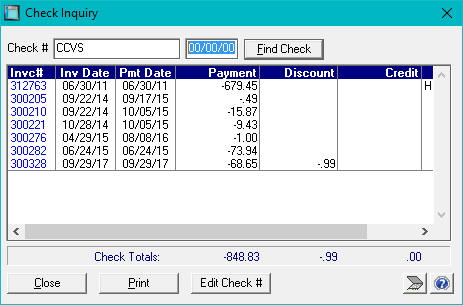
This screen, for example, shows every payment made using check # CCVS, some of which are quite old.
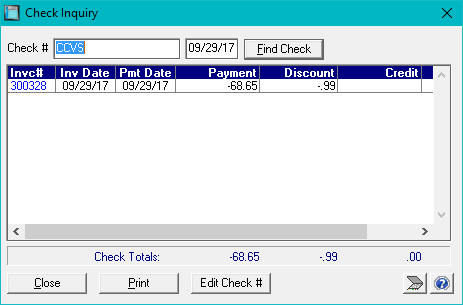
Entering the date, narrows down the results of the invoices paid with that check # more recently.
In this same window, users can also edit the Check number that was used to pay invoices, when viewing current checks still in the "account analysis" display.
If enabled in the Answers Configuration, the user can enter a new check number and ALL the invoices shown, associated with that check number and date (if entered) will be changed to the new check number.
From the main Account Analysis window, users can also right-click on a payment and choose to Edit the Check # and change the check number for a single payment if they do not wish to edit the check number on all invoices made on that payment.
The option to edit the check number is found in the Accounts Receivable, Advanced options and can also be controlled by a password. It is also enabled and disabled by individual user in the User Profiles Maintenance. The option to edit the check number is only valid for invoices and checks still in the "Account Analysis" display. Those checks and invoices already purged into history will not be changed.