Automatic Email Archiving
When emails are sent from Answers, they can be sent one
of various ways. If emails are sent through Outlook or
Windows Mail, or some other integrated Windows application,
the emails are created by Answers and put into the Outbox
and the application sends the email, and then moves it to
the Sent Items folder. This means a copy of the email
is retained on the user's PC, just like any other email they
send. But, these emails are only accessible and
viewable by the user who sent them. If the emails are
sent through VSI-Fax or the SMTP email method, there is no
Outbox and Sent Items, so there is no copy of the emails
retained. This can make it difficult for other users
to find copies of emails and what attachments may have been
sent with the email.
Answers
has an option that it can automatically make a copy of
the emails sent and put them into the Attached/Scanned
Images window for the appropriate document. So, if you
email a quote, it will make a copy of the email, including
the attachments, and save it as an attachment to the Quote.
This allows you to to at any time, look at any email sent by
any user and it will show all the copies of the quote and
additional attachments that were sent.
These attachments are easily identifiable because
they say "Email Message xx/xx/xx @ xx:xx:xx. And, if
there were multiple documents sent (such as multiple invoice
copies) or statements, those documents will show what type
of email it was (statement, invoices) and be attached to the
customer.
When you look at one of these attachments, you see all
the fields from the original email:
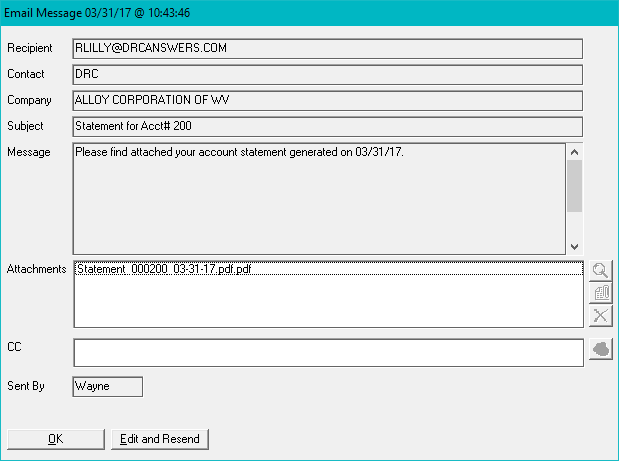
And, the user has the option of viewing the attachments
and even clicking on Edit and Resend to send basically the
same email with the same attachments.
Obviously this type of history and archiving is
extremely useful, but can take us storage space, so the
Scanned Images/Attachments Purge has an extra option that
allow you to only purge the email messages. This
allows you to clean up older emails and keep all your other
scanned documents.
There is a configuration option that can be used to
turn this feature on and off, it is # 5 under the Advanced
Menu options in the Answers Configuration.
Support Home
Other Tips of the Month