Tip of the Month for: May 2024
Updates to Accessing Answers Data via ODBC and Office 365
Microsoft apparently is rolling out updates to Office 365 programs such as Excel that is removing the Microsoft Query option from Excel that many users were used to using to start a new query for extracting data out of Answers. While the reason for this is unclear, and they have added newer options such as Power Query, the "wizard" concept of Microsoft Query was helpful in that you could not only pick your file/tables and fields/columns, but could also do some filtering and sorting all from within the wizard. While these are still possible to perform with other options such as the newer "Power Query or once data is extracted into Excel itself, many feel it is not as intuitive.We have found that there is an option to restore the use of Microsoft Query for the many that are used to working with its wizard walk-thru step-by-step design for extracting data out of Answers into other software such as Excel, Access, Word, etc. via the optional ODBC driver that many of you have purchased. Here would be the steps to restore this seemingly lost option for those that want it back to work with Answers data and the compatible ODBC driver.
(1) Bring up Excel
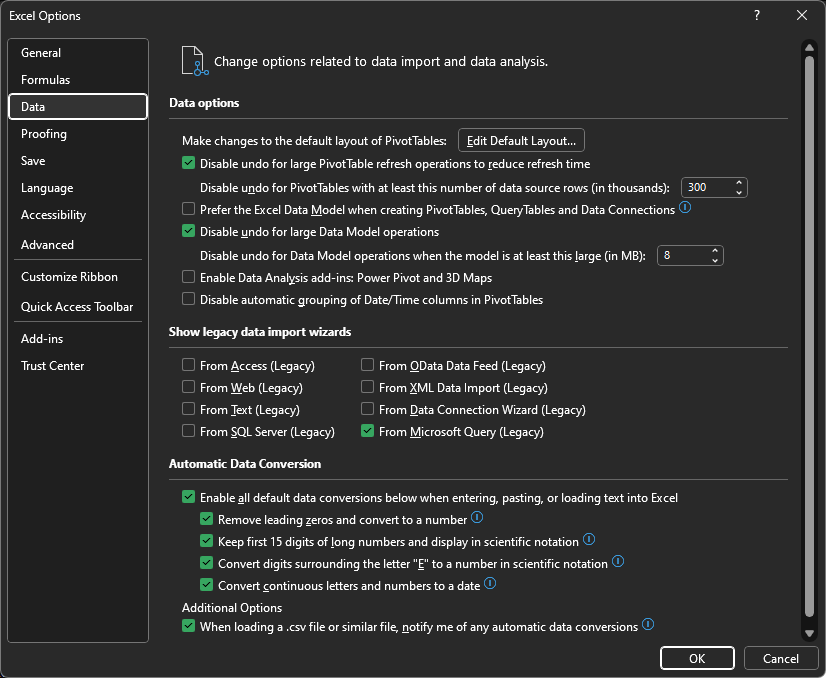
(2) Click on File-->Options-->Data
(3) In the "Show Legacy Data Import Wizards" section, click the box "From Microsoft Query" (see 1st screen shot below)
(4) Click the [OK] button to save your changes
(5) Exit and restart Excel
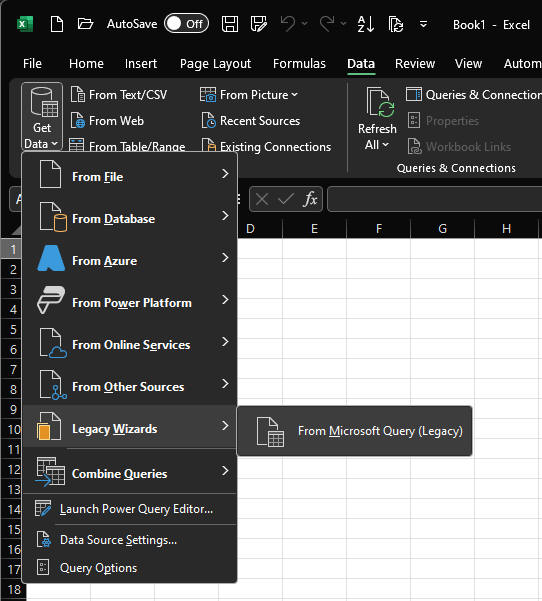
(6) Once back in Excel, click on the "Data" tab, then click on Get Data-->From Legacy Wizards-->From Microsoft Query Legacy (see 2nd screen shot below). From this point on it seems to function the same as before.