
Tip of the Month for: November 2013
Exporting Invoice History to Excel Templates
The Invoice History Export to Excel program makes it easy to create Excel spreadsheets containing invoice history information. Invoice History can be exported to neatly formatted Excel spreadsheets directly from a customer's history by right-clicking on the Invoice History tab in Customer Inquiry, or from the Accounts Receivable Reporting menu. However, if you have used this feature in the past, then you know that it exports ALL invoice history information, thereby requiring the user to delete or hide any columns of data you do not need. While deleting columns in Excel is very simple to do, it can become time consuming to constantly remove the same columns spreadsheet after spreadsheet.
Answers 4.4 added the ability to create templates in Excel and have Answers "fill in" the requested data. This allows you to set up various spreadsheets in advance with column headings and other formats (like colors, bold fonts, logos, etc) and then have Answers simply input the data into the appropriate columns. This will save time if you need to create the same spreadsheets from month to month or week to week.
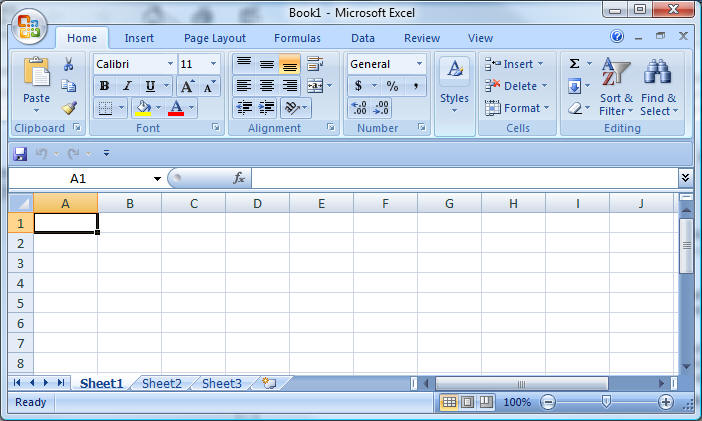
This option uses the "cell naming" capability in Excel. Each cell is given a unique name... "A1", "B2", "D4" and so on. However, Excel will also allow you to "name" the cell, so that "A1" could be named "STOCK_NO". Then, when used from Answers, Answers would know to place the Stock # for all records being exported into that column, beginning at row one. The "cell name" box is generally located on the same line as the function entry field:
You can then replace the standard Excel cell name with an Answers name. All of the names for the available data can be found in the Answers online help. Keep in mind that the data will begin on the line you enter the cell name on, so heading rows should be placed on rows prior to your "named" cells.

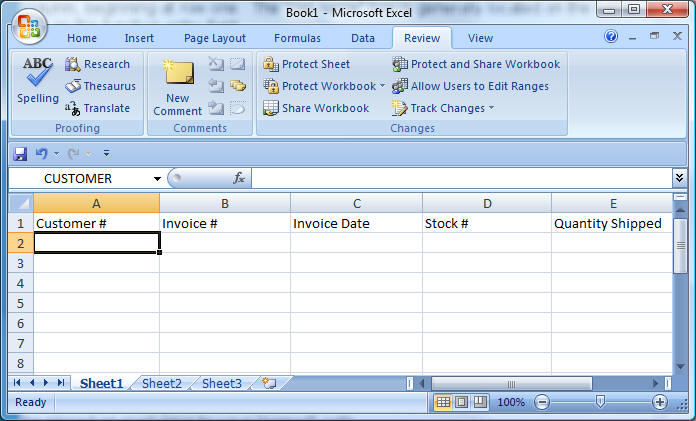
You can save the spreadsheet in any folder (as long as that folder is accessible to the users who may need it. Answers will, by default, check the /answers/print/excel/Invoice_History folder for templates.
When you run the Invoice History Export to Excel, select the spreadsheet template you wish to be filled in. Leaving the template empty/blank will export all fields from the invoice history. Selecting a template will fill in only the data fields requested by the spreadsheet.